To create Invoices and monitor their payment status on .STUDIO, we need to follow the below 3 steps:
Step 1: Ensure you've set up the default finance Settings. Here's a detailed guide.
Step 2: Now that you've set up the default Settings, lets go ahead and create the invoice. You can either refer the video below or read through the article.
To do so, click on Projects > click on the list view > double click on the project name for which you want to create the invoice.
Once the project opens up > click on the Finance Tab > click on New Invoice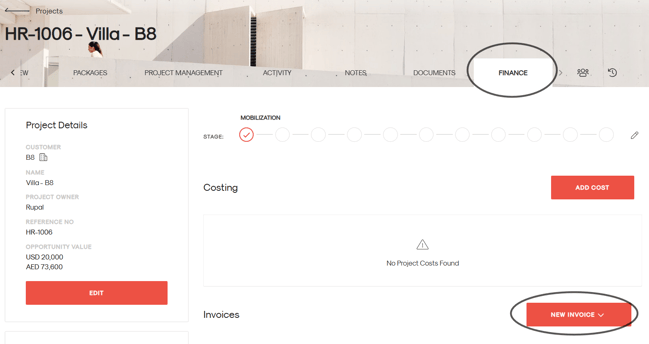
There are two types of invoices in .STUDIO:
-
Internal Invoice: Created directly within .STUDIO.
-
External Invoice: Created outside of .STUDIO and uploaded for calculation and reference.
Select the invoice type based on your requirement.
1. Internal Invoice
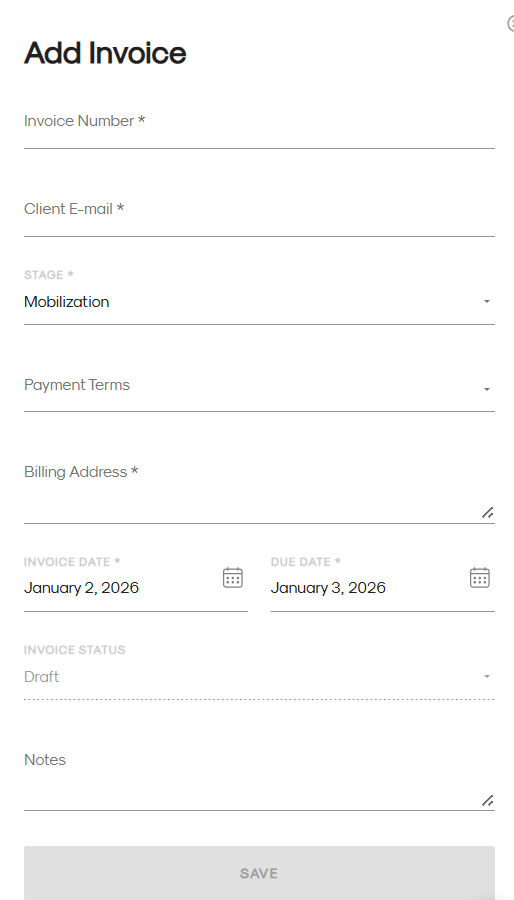
Step 1: Add Invoice Details
-
Fill in the required details in the invoice form (as shown below).
-
Click Save to continue.
Step 2: Add Products or Services
-
Click Edit, then Add Products or Services. Enter the necessary details, including costs.
-
Add VAT information if applicable, then click Save.
Step 3: Review and Manage Invoice
-
After saving, you can download a preview to view the invoice.
-
You can also update the invoice status to Paid or Outstanding by editing the invoice
2. External Invoice
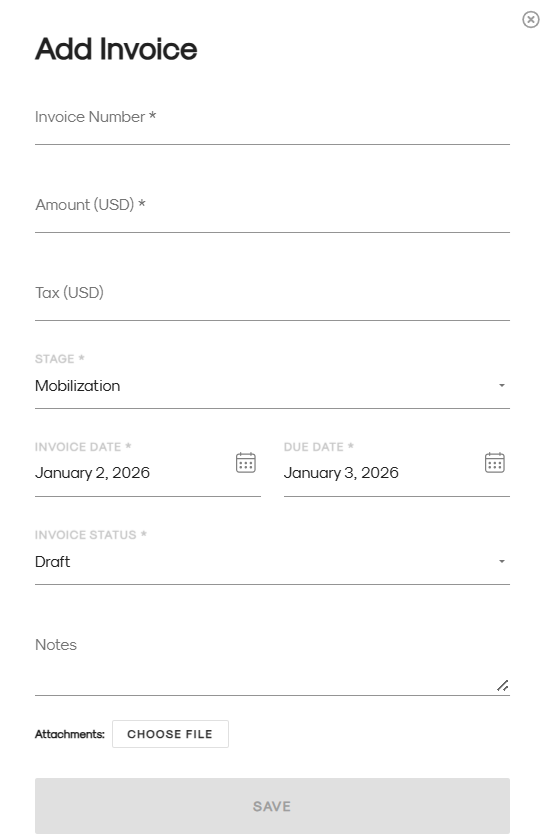
Step 1: Add Invoice Details
-
Fill in the invoice details in the form provided.
Step 2: Upload Invoice
-
Upload the invoice file from your computer.
-
Click Save to complete the process.
Track Your Invoices.
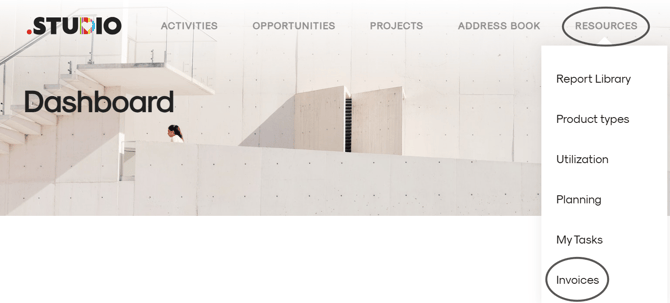
To track your invoices, click on Resources > Click on Invoices and you'll see a list of all your invoices.