---
title: How to Add Widgets to the Home Dashboard
description: Learn how to add widgets to your .STUDIO Home Dashboard, configure widget settings, and customize your dashboard for easy project tracking and management.
---
[Skip to content](https://support.lovethatdesign.studio/knowledge/how-to-add-widgets-to-the-home-dashboard#main-content)

- [Knowledge base](https://28lightbulbs.hubspotpagebuilder.com/blog)
Open main navigation
Close main navigation
- [Knowledge base](https://28lightbulbs.hubspotpagebuilder.com/blog)
Hello there! How can we help you?
- There are no suggestions because the search field is empty.
1. [Knowledgebase](https://support.lovethatdesign.studio/knowledge?hsLang=en)
2. [Widgets](https://support.lovethatdesign.studio/knowledge/widgets?hsLang=en)
# How to Add Widgets to the Home Dashboard
Follow these steps to add widgets to your Project Dashboard:
1. **Open the Dashboard**
- Log in to your .STUDIO instance.
- Click the **.STUDIO logo** in the top-left corner of the screen.
- This will take you to the Dashboard.
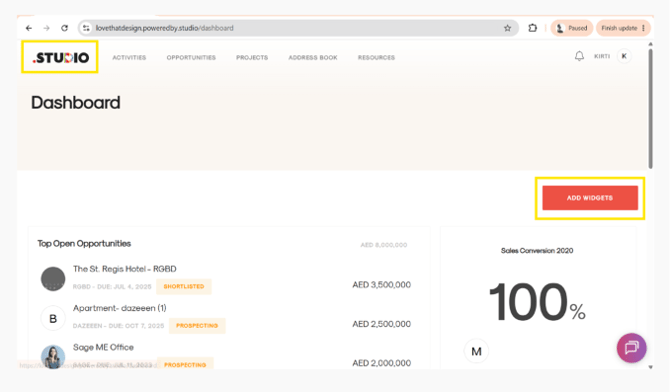
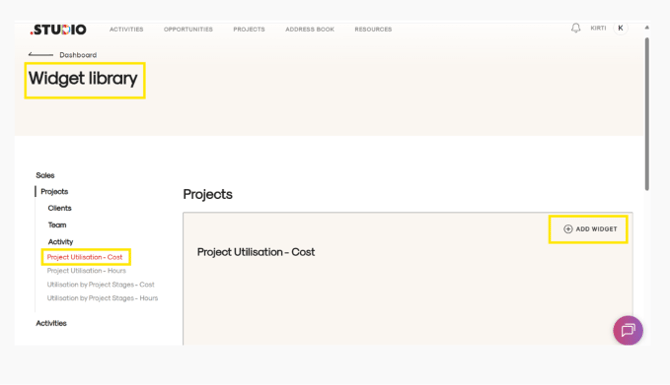
2. **Open the Widget Library**
- On the right side of the dashboard, click **Add Widget**.
- This will open the Widget Library.
- On the left side, you will see widgets grouped under categories such as **Sales, Projects, and Activities**.
3. **Select and Add a Widget**
- Choose the widget you want to add.
- Hover your mouse over the widget card.
- On the top-right corner of the widget card, click **+ Add Widget**.
4. **Choose the Dashboard Location**
- The system will ask where you would like to add the widget:
- Home Dashboard
- Activity Dashboard
- Opportunity Dashboard
- Project Dashboard
- Select **Home Dashboard**.
5. **Configure the Widget**
- A configuration window will appear.
- Fill the required details.
- Click **Add to Home Dashboard**.
Widget Will Be Successfully Added to Home Dashboard
- [Getting Started](https://support.lovethatdesign.studio/knowledge/getting-started?hsLang=en#main-content)
- [Settings](https://support.lovethatdesign.studio/knowledge/getting-started?hsLang=en#settings)
- [Address Book](https://support.lovethatdesign.studio/knowledge/address-book?hsLang=en)
- [Project](https://support.lovethatdesign.studio/knowledge/project?hsLang=en#main-content)
- [Packages](https://support.lovethatdesign.studio/knowledge/project?hsLang=en#packages)
- [Planning](https://support.lovethatdesign.studio/knowledge/project?hsLang=en#planning)
- [Sections](https://support.lovethatdesign.studio/knowledge/project?hsLang=en#sections)
- [Activity](https://support.lovethatdesign.studio/knowledge/project?hsLang=en#activity)
- [Notes](https://support.lovethatdesign.studio/knowledge/project?hsLang=en#notes)
- [Documents](https://support.lovethatdesign.studio/knowledge/project?hsLang=en#documents)
- [Finance](https://support.lovethatdesign.studio/knowledge/project?hsLang=en#finance)
- [Team](https://support.lovethatdesign.studio/knowledge/project?hsLang=en#team)
- [History](https://support.lovethatdesign.studio/knowledge/project?hsLang=en#history)
- [Group](https://support.lovethatdesign.studio/knowledge/project?hsLang=en#group)
- [Project Management](https://support.lovethatdesign.studio/knowledge/project?hsLang=en#project-management)
- [Item](https://support.lovethatdesign.studio/knowledge/project?hsLang=en#item)
- [Export](https://support.lovethatdesign.studio/knowledge/project?hsLang=en#export)
- [Opportunity](https://support.lovethatdesign.studio/knowledge/opportunity?hsLang=en#main-content)
- [Notes](https://support.lovethatdesign.studio/knowledge/opportunity?hsLang=en#notes)
- [Activity](https://support.lovethatdesign.studio/knowledge/opportunity?hsLang=en#activity)
- [Timeline](https://support.lovethatdesign.studio/knowledge/opportunity?hsLang=en#timeline)
- [Estimates](https://support.lovethatdesign.studio/knowledge/opportunity?hsLang=en#estimates)
- [Documents](https://support.lovethatdesign.studio/knowledge/opportunity?hsLang=en#documents)
- [Team](https://support.lovethatdesign.studio/knowledge/opportunity?hsLang=en#team)
- [History](https://support.lovethatdesign.studio/knowledge/opportunity?hsLang=en#history)
- [Overview](https://support.lovethatdesign.studio/knowledge/opportunity?hsLang=en#overview)
- [Timesheets](https://support.lovethatdesign.studio/knowledge/timesheets?hsLang=en)
- [Resources](https://support.lovethatdesign.studio/knowledge/resources?hsLang=en)
- [FAQs](https://support.lovethatdesign.studio/knowledge/faqs?hsLang=en#main-content)
- [Invoice](https://support.lovethatdesign.studio/knowledge/faqs?hsLang=en#invoice)
- [Leave](https://support.lovethatdesign.studio/knowledge/faqs?hsLang=en#leave)
- [Terminology](https://support.lovethatdesign.studio/knowledge/faqs?hsLang=en#terminology)
- [What's New?](https://support.lovethatdesign.studio/knowledge/whats-new?hsLang=en#main-content)
- [Year - 2023](https://support.lovethatdesign.studio/knowledge/whats-new?hsLang=en#year-2023)
- [Year -2024](https://support.lovethatdesign.studio/knowledge/whats-new?hsLang=en#year-2024)
- [Data and Insights](https://support.lovethatdesign.studio/knowledge/data-and-insights?hsLang=en)
- [Customization](https://support.lovethatdesign.studio/knowledge/customization?hsLang=en)
- [.STUDIO Support](https://support.lovethatdesign.studio/knowledge/studio-support?hsLang=en)
- [Widgets](https://support.lovethatdesign.studio/knowledge/widgets?hsLang=en)
- [Knowledge base](https://28lightbulbs.hubspotpagebuilder.com/blog)
[](https://get.lovethatdesign.studio/?hsLang=en)
Copyright © 2026, Love That Design