
To create a project, follow these steps:
-
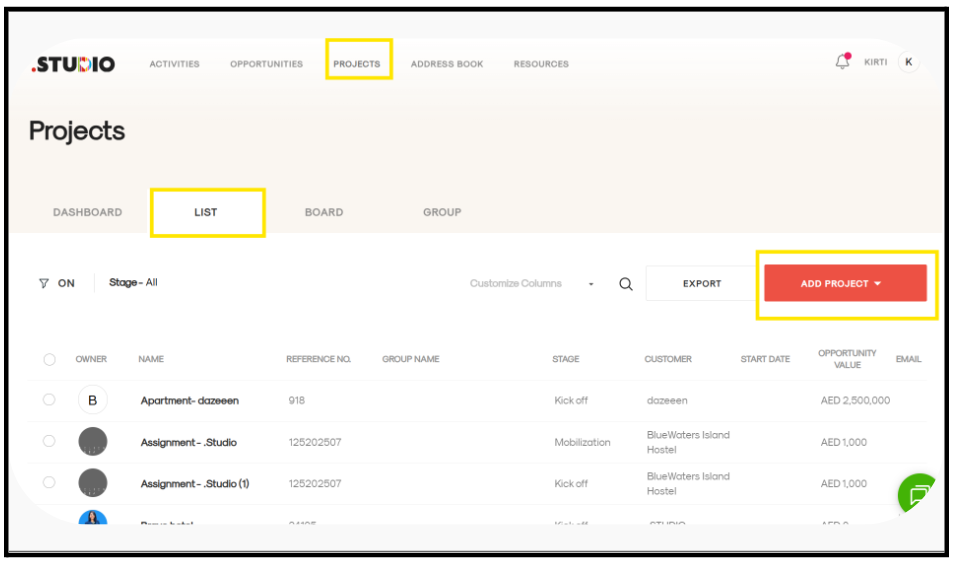
Navigate to the Projects tab. You will see a list of all the projects you have already created.
-
Click on the Add Project button. A form page will open.
-
Fill in the mandatory fields:
-
Customer: Select an existing client from the dropdown or type a new client name. If it’s a new client, you’ll be prompted to add customer details.
-
Project Name: Enter the name of your project.
-
Project Owner: By default, the system assigns you as the owner, but you can change it if needed.
-
Country: Select from the dropdown.
-
-
Fill in non-mandatory fields (optional):
-
Project Type: e.g., Residential, Hospitality, Corporate, etc.
-
Reference Number
-
Project Folder: Link to any online folder (e.g., Google Drive) where project documents are stored.
-
Other optional details as needed.
-
-
Click Add to create your project.
Your project will now be successfully created and visible in the Projects list.