---
title: How to Create an Estimate
description: Learn how to create an estimate in .STUDIO, including setting up estimate details, adding resources, expenses and markups, managing rates, and activating the estimate.
---
[Skip to content](https://support.lovethatdesign.studio/knowledge/how-to-create-an-estimate#main-content)

- [Knowledge base](https://28lightbulbs.hubspotpagebuilder.com/blog)
Open main navigation
Close main navigation
- [Knowledge base](https://28lightbulbs.hubspotpagebuilder.com/blog)
Hello there! How can we help you?
- There are no suggestions because the search field is empty.
1. [Knowledgebase](https://support.lovethatdesign.studio/knowledge?hsLang=en)
2. [Opportunity](https://support.lovethatdesign.studio/knowledge/opportunity?hsLang=en)
3. [Estimates](https://support.lovethatdesign.studio/knowledge/opportunity?hsLang=en#estimates)
# How to Create an Estimate
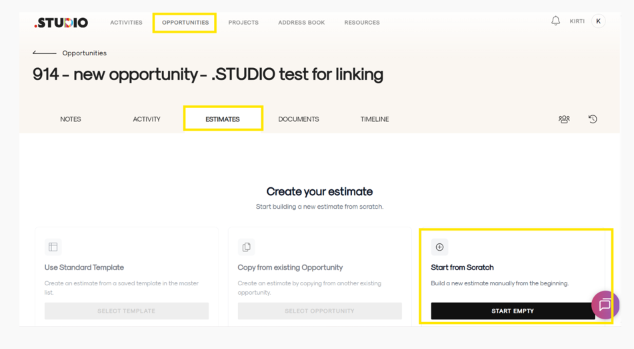
1. Open the relevant Opportunity.
2. Go to the Estimates tab.
3. Click Create Estimate.
4. Select Start Empty to begin creating the estimate from scratch.
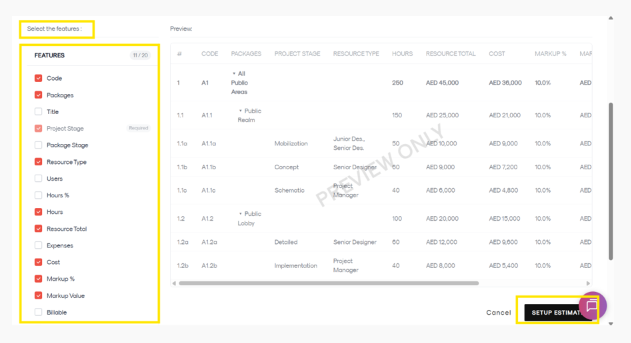
5. Use the options on the left to select the features you want to include, such as Code, Packages, Title, Markup %, and others.
6. Click SETUP ESTIMATE.
Set Up Your Estimate
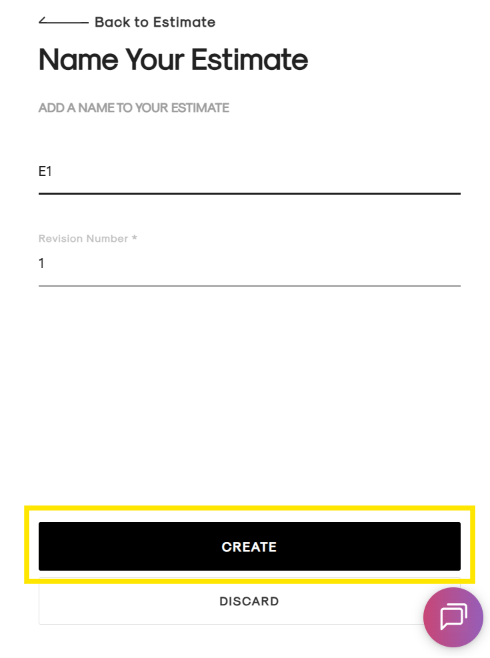
A setup form will appear:
1. Enter the Estimate Name.
2. Enter the Revision Number.
3. Click Create.
Add Estimate Details
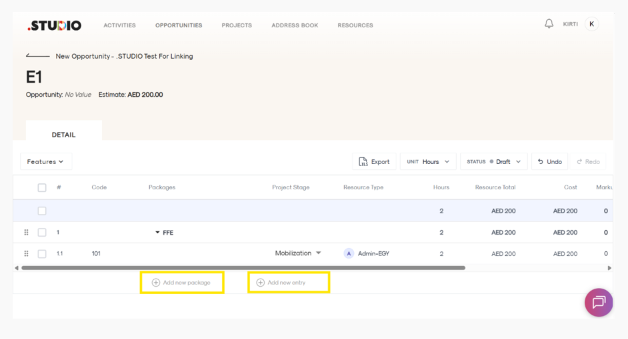
Once the estimate is created, you can start setting up the workflow and adding estimate entries.
Click Add New Entry to add details such as:
- Package
- Project Stage
- Resource Type or User
- Estimated Hours
- Expenses
- Markups
Continue adding entries until all required work and costs have been included in the estimate.
Manage Resource Rates
To manage the rate for a resource:
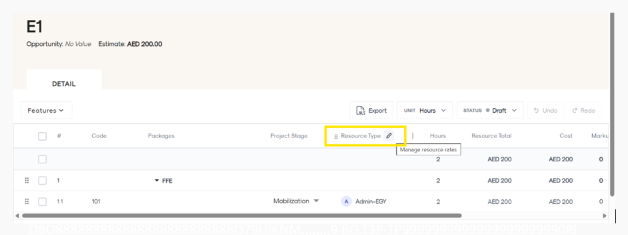
1. Hover over the Resource Type title.
2. Click the pencil/edit icon.
3. Review or update the applicable resource rate.
Add Expenses
Expenses can be added as either:
- Fixed expenses
- Rate-based expenses, where the total is calculated based on quantity and cost
Apply Markups
Markups can be applied at the project or package level.
You can enter a markup as either a percentage or a manual value. Entering one will lock the other field to prevent both from being used at the same time.
Review and Activate the Estimate
Once all estimate details have been added:
1. Review the entries to make sure all required information is complete.
2. Change the estimate status to Active.
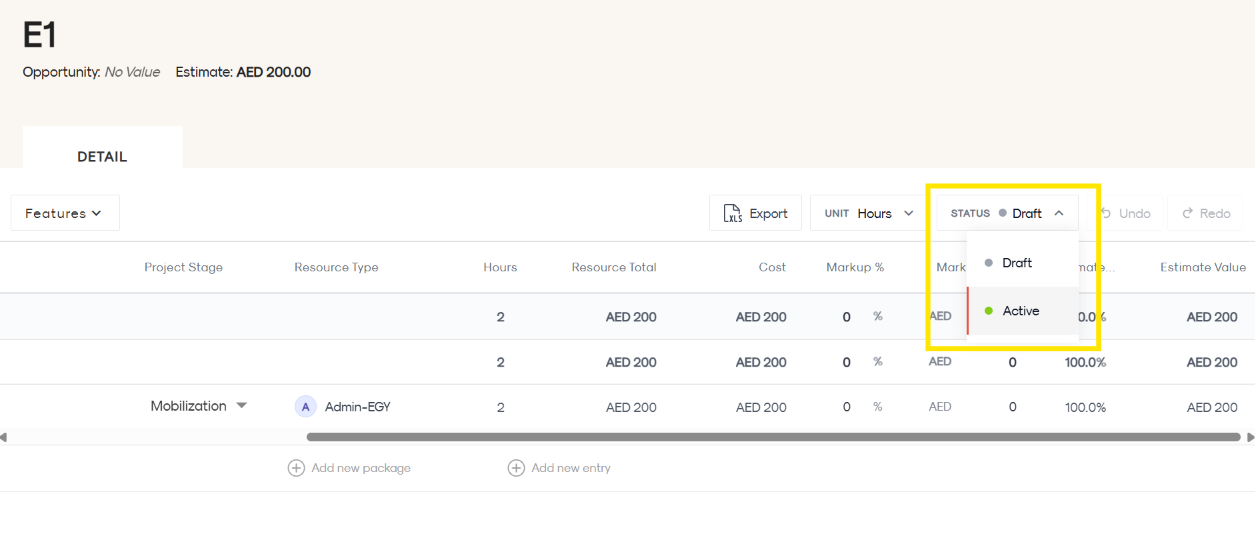
3. A confirmation form titled Name Your Estimate will appear.
4. Enter or confirm the Estimate Name and Revision Number.
5. Click Activate.
Once activated, the estimate is locked and can no longer be edited.
- [Getting Started](https://support.lovethatdesign.studio/knowledge/getting-started?hsLang=en#main-content)
- [Settings](https://support.lovethatdesign.studio/knowledge/getting-started?hsLang=en#settings)
- [Address Book](https://support.lovethatdesign.studio/knowledge/address-book?hsLang=en)
- [Project](https://support.lovethatdesign.studio/knowledge/project?hsLang=en#main-content)
- [Packages](https://support.lovethatdesign.studio/knowledge/project?hsLang=en#packages)
- [Planning](https://support.lovethatdesign.studio/knowledge/project?hsLang=en#planning)
- [Sections](https://support.lovethatdesign.studio/knowledge/project?hsLang=en#sections)
- [Activity](https://support.lovethatdesign.studio/knowledge/project?hsLang=en#activity)
- [Notes](https://support.lovethatdesign.studio/knowledge/project?hsLang=en#notes)
- [Documents](https://support.lovethatdesign.studio/knowledge/project?hsLang=en#documents)
- [Finance](https://support.lovethatdesign.studio/knowledge/project?hsLang=en#finance)
- [Team](https://support.lovethatdesign.studio/knowledge/project?hsLang=en#team)
- [History](https://support.lovethatdesign.studio/knowledge/project?hsLang=en#history)
- [Group](https://support.lovethatdesign.studio/knowledge/project?hsLang=en#group)
- [Project Management](https://support.lovethatdesign.studio/knowledge/project?hsLang=en#project-management)
- [Item](https://support.lovethatdesign.studio/knowledge/project?hsLang=en#item)
- [Export](https://support.lovethatdesign.studio/knowledge/project?hsLang=en#export)
- [Opportunity](https://support.lovethatdesign.studio/knowledge/opportunity?hsLang=en#main-content)
- [Notes](https://support.lovethatdesign.studio/knowledge/opportunity?hsLang=en#notes)
- [Activity](https://support.lovethatdesign.studio/knowledge/opportunity?hsLang=en#activity)
- [Timeline](https://support.lovethatdesign.studio/knowledge/opportunity?hsLang=en#timeline)
- [Estimates](https://support.lovethatdesign.studio/knowledge/opportunity?hsLang=en#estimates)
- [Documents](https://support.lovethatdesign.studio/knowledge/opportunity?hsLang=en#documents)
- [Team](https://support.lovethatdesign.studio/knowledge/opportunity?hsLang=en#team)
- [History](https://support.lovethatdesign.studio/knowledge/opportunity?hsLang=en#history)
- [Overview](https://support.lovethatdesign.studio/knowledge/opportunity?hsLang=en#overview)
- [Timesheets](https://support.lovethatdesign.studio/knowledge/timesheets?hsLang=en)
- [Resources](https://support.lovethatdesign.studio/knowledge/resources?hsLang=en)
- [FAQs](https://support.lovethatdesign.studio/knowledge/faqs?hsLang=en#main-content)
- [Invoice](https://support.lovethatdesign.studio/knowledge/faqs?hsLang=en#invoice)
- [Leave](https://support.lovethatdesign.studio/knowledge/faqs?hsLang=en#leave)
- [Terminology](https://support.lovethatdesign.studio/knowledge/faqs?hsLang=en#terminology)
- [What's New?](https://support.lovethatdesign.studio/knowledge/whats-new?hsLang=en#main-content)
- [Year - 2023](https://support.lovethatdesign.studio/knowledge/whats-new?hsLang=en#year-2023)
- [Year -2024](https://support.lovethatdesign.studio/knowledge/whats-new?hsLang=en#year-2024)
- [Data and Insights](https://support.lovethatdesign.studio/knowledge/data-and-insights?hsLang=en)
- [Customization](https://support.lovethatdesign.studio/knowledge/customization?hsLang=en)
- [.STUDIO Support](https://support.lovethatdesign.studio/knowledge/studio-support?hsLang=en)
- [Widgets](https://support.lovethatdesign.studio/knowledge/widgets?hsLang=en)
- [Knowledge base](https://28lightbulbs.hubspotpagebuilder.com/blog)
[](https://get.lovethatdesign.studio/?hsLang=en)
Copyright © 2026, Love That Design