
If the part you want to link is not available in the existing parts list, you can create a new part and link it directly to the item.
Steps- Open the required Project. Navigate to the appropriate Package.
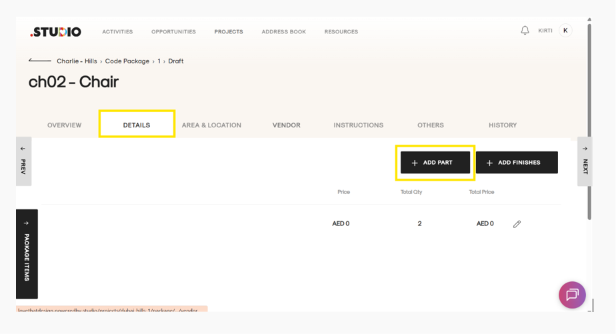
- Open the item you want to add the part to.
- Go to the Details tab.
- Click Add Parts.
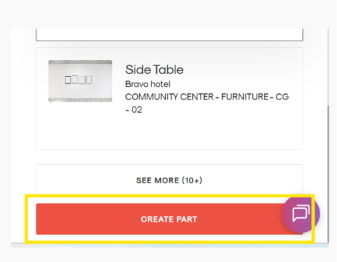
- Scroll to the bottom of the window and click the red Create Part button.
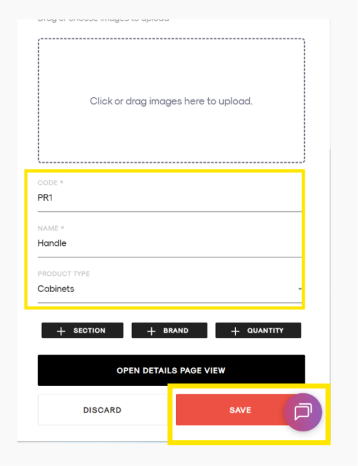
- Complete the required fields, such as:
- Code
- Name
- Product Type
- Click Save to create the part.
- If you would like to add more information, open the part in Details page view and complete the additional fields.
- Click Save again.
The newly created part will be automatically linked to the item and will appear under the item's Parts section in the Details tab.