
Steps to Log Time in weekly view
1. Navigate to the Activities tab in the main menu.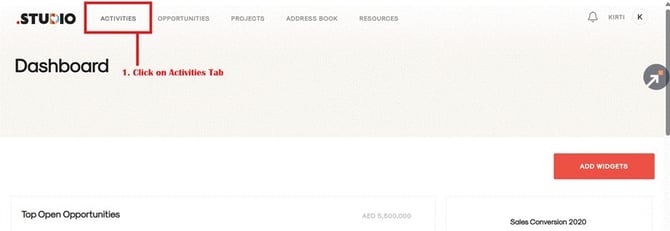
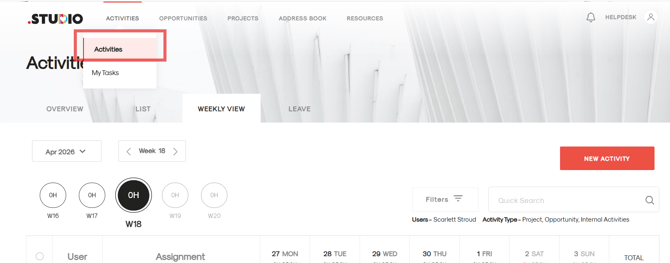
2. From the dropdown, click on Activities.
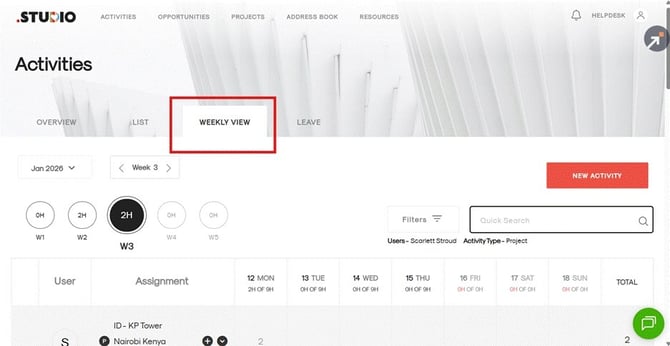
3. Click on the Weekly View tab. You will see a list of all your assigned projects.
4. Locate the project you wish to log time against and click the + (plus) icon next to it. Alternatively, you can hover over the specific day and click the + icon to add an activity.
5. Click on drop down to Select Activity/Task.
6. Click on drop down Stage: Select the suitable stage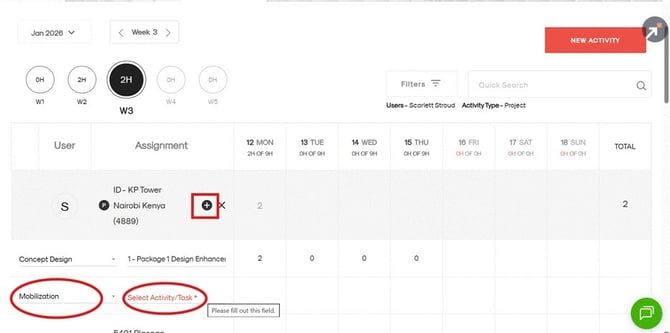
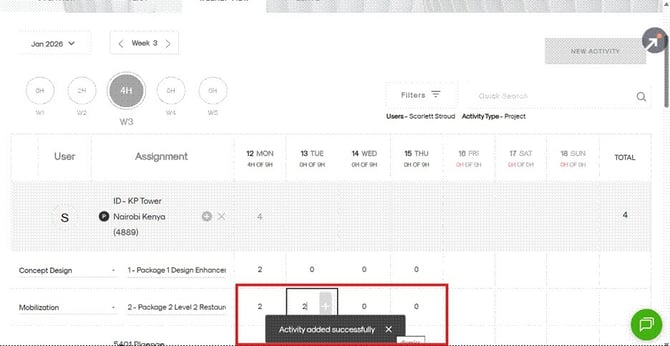
7. For entering activity
- Double-click on the day you worked to start adding time.
- Use the Tab key to move to the next date; previous entries will be saved automatically
Important Notes
- Project visibility in Assignment dropdown:
If a project is not visible, it may be because:- You are not assigned as a member of the project, or
- The project has not been created in the system.
- Task visibility:
If a task is not visible, it may be because:- The task has not been created yet, or
- You have not been assigned to it.
For both cases, please contact your administrator to ensure the project and relevant task are created and assigned to you.