
You can remove colleagues and team members in .STUDIO. However, this action is only available to users with the Admin role.
Steps to remove a user:
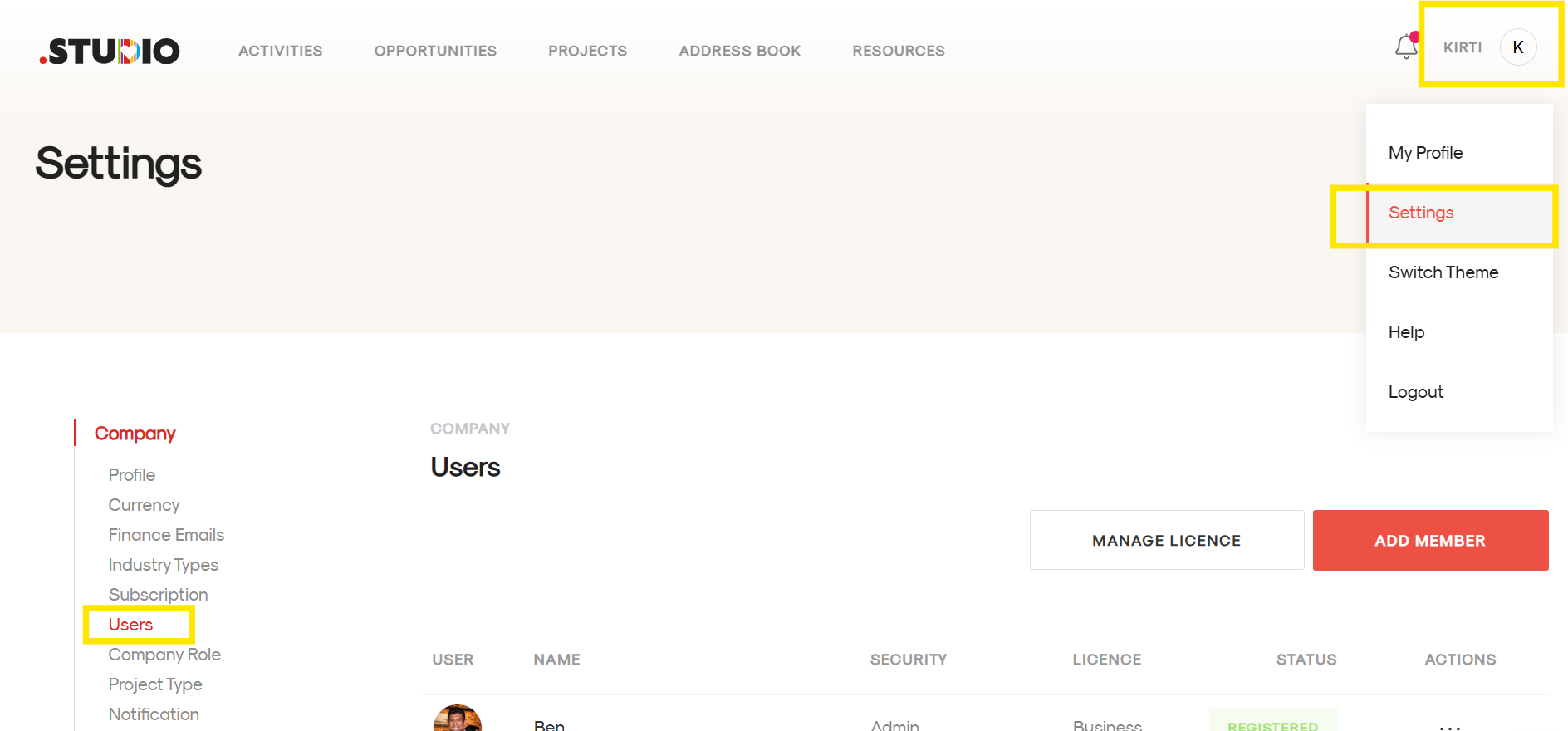
- Click on your profile icon in the platform.
- Select Settings from the menu.
- You will be redirected to the Settings page.
- On the left-hand side, under the Company section, click on the Users tab.
- This will display a list of all users in the system.
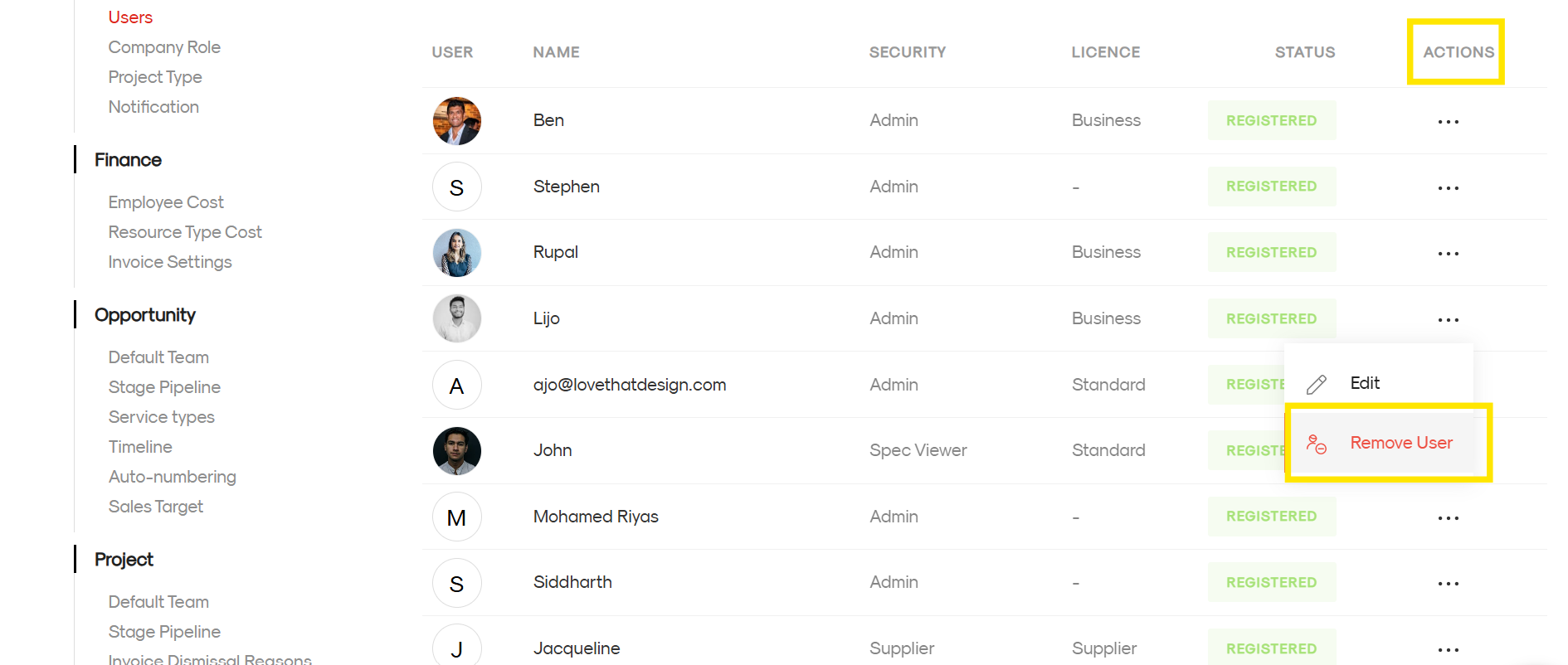
- Locate the user you want to remove.
- In the Actions column next to the user’s name, click on the three dots (…).
- You will see two options: Edit and Remove User.
- Click on Remove User.
- A confirmation pop-up will appear asking if you are sure you want to delete the user.
- Click Delete to confirm.
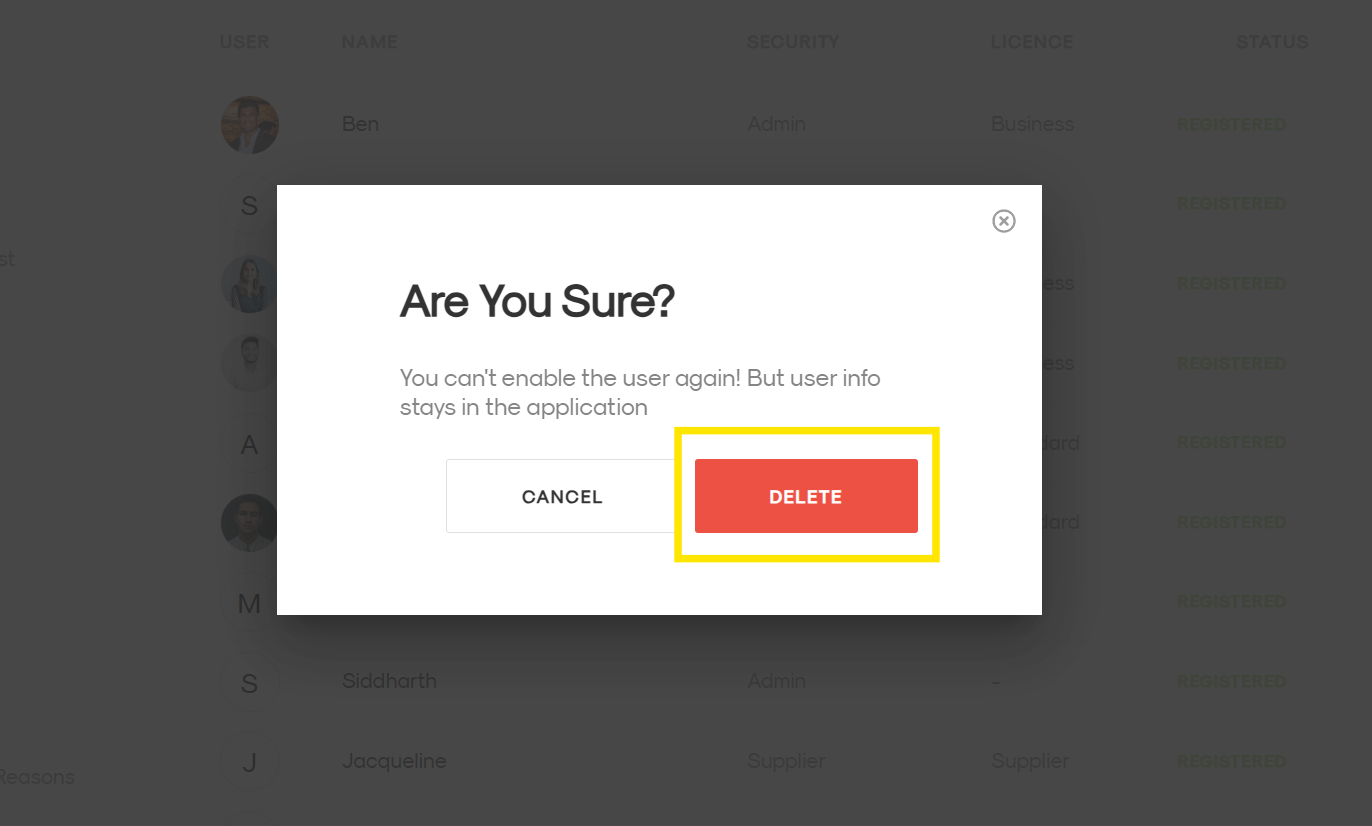
The user will then be removed from the list.