
Steps
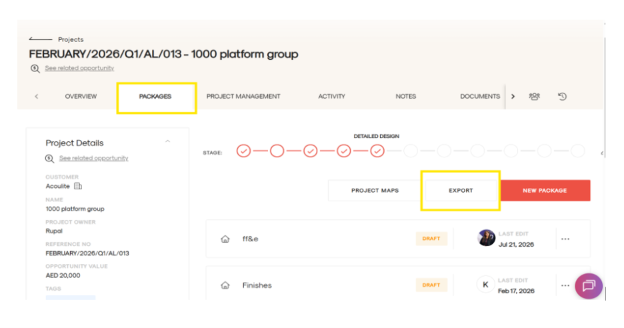
- Open your project and select the required package.
- Click Export from the middle toolbar.
- In the Export window:
- Select the Package.
- (Optional) Select a Section to export only that section. Leave it blank to export the entire package.
- Click Confirm Options.
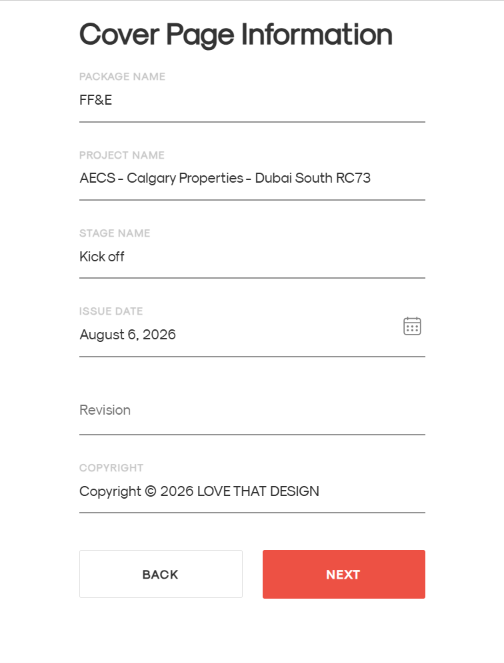
- Update the Cover Page information and click Next.
- Select the export options you want to include, such as:
- Include Quantities
- Show Manufacturer
- Show Supplier
- Show Vendor Details & Vendor Text
- Or Equal Approved
- Show Vendor Text Only
- Choose the pages to include in the export, including:
- Cover Page
- General Instructions
- Full Index
- Legend
- Code
- Item
- Location
- Description
- Dimension
- Supplier
- Featured Image
- Notes
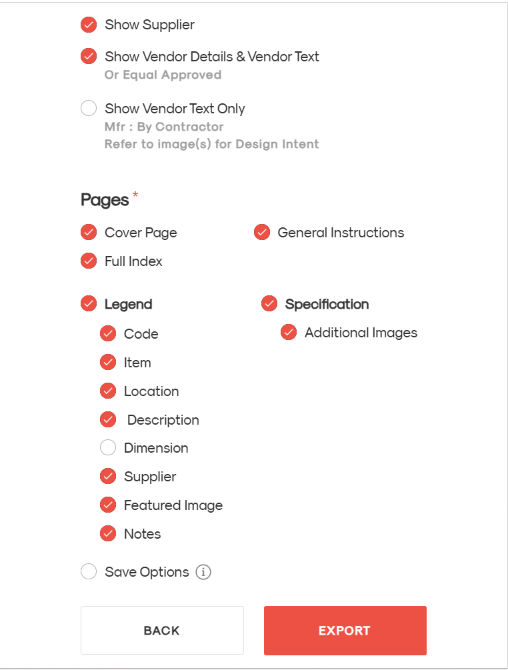
- Click Export to generate the specification PDF.
Note: These options allow you to configure the content of the export. Changes to the PDF layout or design require template customization by the .STUDIO team.