---
title: Where can I add Project Maps?
description: Learn where to add Project Maps in .STUDIO. Create sites, buildings, floors, and rooms to organize your project structure and streamline specification creation.
---
[Skip to content](https://support.lovethatdesign.studio/knowledge/where-can-i-add-project-maps#main-content)

- [Knowledge base](https://28lightbulbs.hubspotpagebuilder.com/blog)
Open main navigation
Close main navigation
- [Knowledge base](https://28lightbulbs.hubspotpagebuilder.com/blog)
Hello there! How can we help you?
- There are no suggestions because the search field is empty.
1. [Knowledgebase](https://support.lovethatdesign.studio/knowledge?hsLang=en)
2. [Project](https://support.lovethatdesign.studio/knowledge/project?hsLang=en)
3. [Planning](https://support.lovethatdesign.studio/knowledge/project?hsLang=en#planning)
# Where can I add Project Maps?
You can add **Project Maps** from within your project.
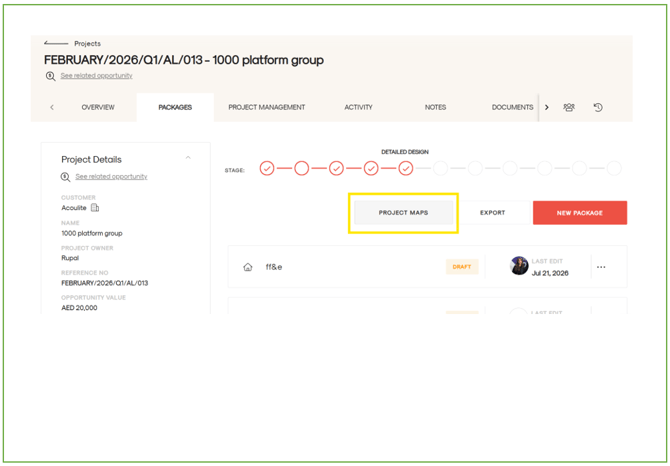
1. Open the project where you want to create a Project Map.
2. In the **Packages** tab, click **Project Maps**.
3. Click the red **Add (+)** button and select the type of item you want to create, such as a **Site**, **Building**, **Floor**, or **Room**. Alternatively, you can open an existing item and click the **+** button within it to add the next level directly (for example, add a floor to a building or a room to a floor).
4. Select the type of item you want to create, such as a **Site**, **Building**, **Floor**, or **Room**.
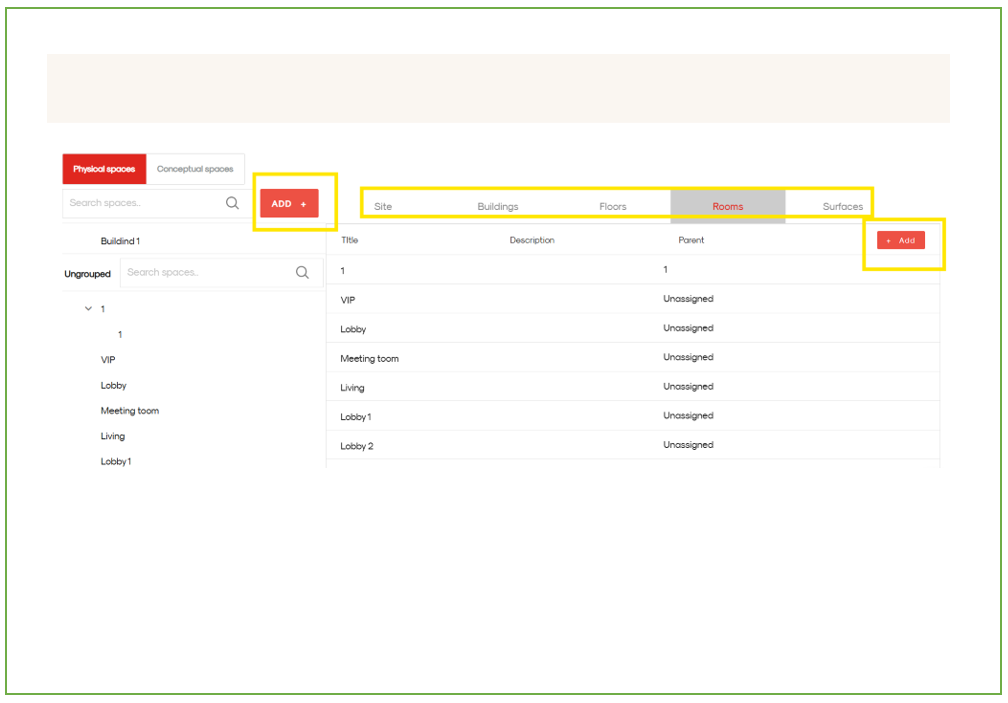
5. A form will open. Enter the required details and click **Save**.
6. Continue adding buildings, floors, rooms, or other project areas as needed to build your project structure.
Once your Project Map has been created, the building, floor, and room structure will be available when creating specifications, making it easier to organize and assign specification details to the correct project areas
- [Getting Started](https://support.lovethatdesign.studio/knowledge/getting-started?hsLang=en#main-content)
- [Settings](https://support.lovethatdesign.studio/knowledge/getting-started?hsLang=en#settings)
- [Address Book](https://support.lovethatdesign.studio/knowledge/address-book?hsLang=en)
- [Project](https://support.lovethatdesign.studio/knowledge/project?hsLang=en#main-content)
- [Packages](https://support.lovethatdesign.studio/knowledge/project?hsLang=en#packages)
- [Planning](https://support.lovethatdesign.studio/knowledge/project?hsLang=en#planning)
- [Sections](https://support.lovethatdesign.studio/knowledge/project?hsLang=en#sections)
- [Activity](https://support.lovethatdesign.studio/knowledge/project?hsLang=en#activity)
- [Notes](https://support.lovethatdesign.studio/knowledge/project?hsLang=en#notes)
- [Documents](https://support.lovethatdesign.studio/knowledge/project?hsLang=en#documents)
- [Finance](https://support.lovethatdesign.studio/knowledge/project?hsLang=en#finance)
- [Team](https://support.lovethatdesign.studio/knowledge/project?hsLang=en#team)
- [History](https://support.lovethatdesign.studio/knowledge/project?hsLang=en#history)
- [Group](https://support.lovethatdesign.studio/knowledge/project?hsLang=en#group)
- [Project Management](https://support.lovethatdesign.studio/knowledge/project?hsLang=en#project-management)
- [Item](https://support.lovethatdesign.studio/knowledge/project?hsLang=en#item)
- [Export](https://support.lovethatdesign.studio/knowledge/project?hsLang=en#export)
- [Opportunity](https://support.lovethatdesign.studio/knowledge/opportunity?hsLang=en#main-content)
- [Notes](https://support.lovethatdesign.studio/knowledge/opportunity?hsLang=en#notes)
- [Activity](https://support.lovethatdesign.studio/knowledge/opportunity?hsLang=en#activity)
- [Timeline](https://support.lovethatdesign.studio/knowledge/opportunity?hsLang=en#timeline)
- [Estimates](https://support.lovethatdesign.studio/knowledge/opportunity?hsLang=en#estimates)
- [Documents](https://support.lovethatdesign.studio/knowledge/opportunity?hsLang=en#documents)
- [Team](https://support.lovethatdesign.studio/knowledge/opportunity?hsLang=en#team)
- [History](https://support.lovethatdesign.studio/knowledge/opportunity?hsLang=en#history)
- [Overview](https://support.lovethatdesign.studio/knowledge/opportunity?hsLang=en#overview)
- [Timesheets](https://support.lovethatdesign.studio/knowledge/timesheets?hsLang=en)
- [Resources](https://support.lovethatdesign.studio/knowledge/resources?hsLang=en)
- [FAQs](https://support.lovethatdesign.studio/knowledge/faqs?hsLang=en#main-content)
- [Invoice](https://support.lovethatdesign.studio/knowledge/faqs?hsLang=en#invoice)
- [Leave](https://support.lovethatdesign.studio/knowledge/faqs?hsLang=en#leave)
- [Terminology](https://support.lovethatdesign.studio/knowledge/faqs?hsLang=en#terminology)
- [What's New?](https://support.lovethatdesign.studio/knowledge/whats-new?hsLang=en#main-content)
- [Year - 2023](https://support.lovethatdesign.studio/knowledge/whats-new?hsLang=en#year-2023)
- [Year -2024](https://support.lovethatdesign.studio/knowledge/whats-new?hsLang=en#year-2024)
- [Data and Insights](https://support.lovethatdesign.studio/knowledge/data-and-insights?hsLang=en)
- [Customization](https://support.lovethatdesign.studio/knowledge/customization?hsLang=en)
- [.STUDIO Support](https://support.lovethatdesign.studio/knowledge/studio-support?hsLang=en)
- [Widgets](https://support.lovethatdesign.studio/knowledge/widgets?hsLang=en)
- [Knowledge base](https://28lightbulbs.hubspotpagebuilder.com/blog)
[](https://get.lovethatdesign.studio/?hsLang=en)
Copyright © 2026, Love That Design